What Is Kaltura?
Kaltura is an online video platform with built-in compatibility with Canvas. As a result of it being online, it ensures compatibility between your video and whatever platform it’s viewed on. If your instructor allows, you can upload video assignments through Kaltura instead of uploading the files directly to Canvas.
Create and Embed Videos in Canvas Activities using Kaltura
Embed
You can embed video content directly into any text area in Canvas including Assignments, Discussions and more, where text editing options are given. To get started click the Embed Kaltura Media option found in the text editor options.

The Add Media button creates a pop up window where you can see existing uploaded videos, but also an Add New button will display a menu for new content.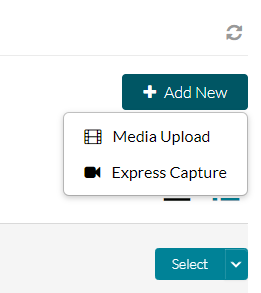
Create with: Media Upload
- Under Add New select Media Upload.
- Select Choose a file to upload. Select your desired file and click Open. You will see a loading bar as your video uploads.
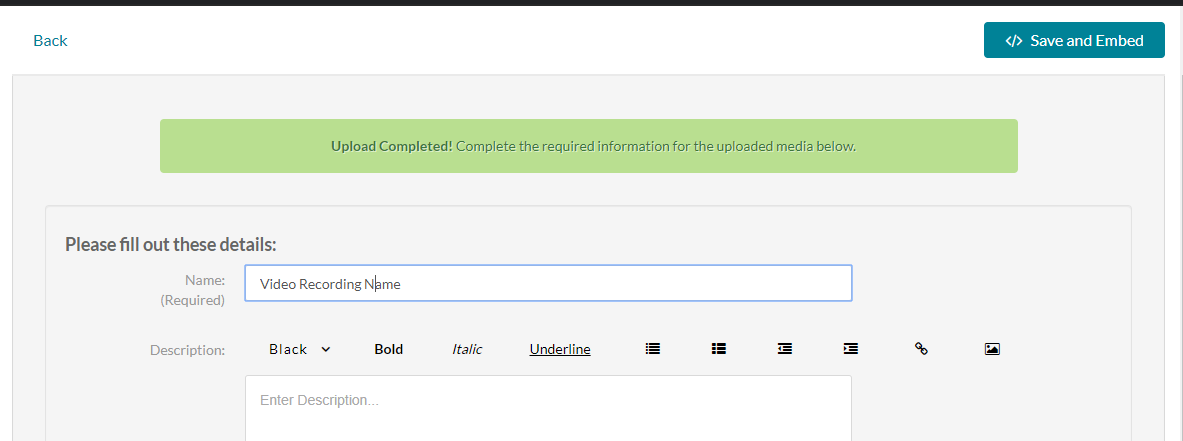
- Edit the Name, Description, and Tags as needed. A name is required.
- Once the bar displays a full green bar and Complete, select Save and Embed at the top right of the window. The page will reload, with a confirmation at the top.

Create with: Express Capture
If you choose this option, another popup window will come up. If you have never used this feature before you may get a prompt that asks permission to use your webcam and microphone.
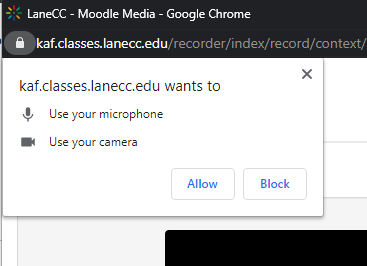
Once you agree, your webcam and microphone will be enabled and you should see your face showing on the screen in front of you.
- At this point, you have the ability to record yourself by clicking the red circle on the screen to start the recording.
- To stop it just click the stop button with the recording time.
- You can change the webcam and mic used by clicking the gear at the top right of the recording window.
Once done you are given the option to Record again, Download a copy, and Use this. Use this will upload the video and let you change the name and description of the video.

Click Save and Embed at the top right to add it as the resource.
Student Help Desk Support (SHeD)
The student help desk is located on main campus in the Library (center building).
- Self-help resources for students
- Email: shed@lanecc.edu
- Phone: (541) 463-3333 (please leave a voice message