The question bank being utilized in Canvas is Item Banks. These can be found in the "Item Bank" option in the left-hand course navigation. Item banks/categories must be shared manually to a specific course when created. You can access any Item bank from any course you are a teacher. Transitioning from Moodle to Canvas is a bit like moving into a new house—all your stuff is there, but you’re going to spend the first week reaching for light switches that aren't where they used to be. This article will not cover everything but should help quickly get you oriented and started in Canvas.
ATC Canvas Transition
Use the link above for migration milestones, training opportunities, additional resources, and frequently asked questions.
Will everything in Moodle transfer over to Canvas?
Not all Moodle activities are compatible (Lesson, Book, etc.). Some content types, tools, and course elements may require review or adjustment after migration. We strongly recommend that you carefully review all your content, especially complex elements like assignments, quizzes, and interactive activities, to ensure they’re functioning correctly in Canvas.
📋 Getting Started & Course Access
How do I log into Canvas?
Lane Community College's instance of Canvas uses canvas.lanecc.edu. You can log in with your MyLane credentials, just like you logged into Moodle (L number and password).
Where are my courses?
Courses appear as cards on the dashboard, with sections for Published and Unpublished courses. To see a list of all courses, choose Courses from the left-hand navigation panel. You will see a pop-out menu showing your favorite courses. You can select All Courses to see a list of all courses you have access to and choose which ones you want to “star” as favorite.

For more info, check out How do I view all my Canvas courses?
🛠️ Course Organization & Visibility
What happened to my "Topics" and "Weeks"?
These are now called Modules and can be found in the left-hand Course Navigation. These follow a similar format to Moodle's weeks and topics, with a logical order from the top of the page to the bottom.
Week dates do not get automatically updated based on term dates like we had in Moodle.
For more info, check out How do I use the Modules Index Page?
Where is the "Edit mode" switch?
Canvas doesn't have a global toggle. Editing Modules/Sections in Canvas on the Modules page in the Canvas course navigation and can be done at any time, without turning editing on and off. You can move content around in modules and add different types of content to modules. You must navigate to a specific Page, Assignment, quiz, etc. and click the Edit button or the three-dot (⋮) menu.
What happened to "Activity Completion" (checkboxes)?
In Moodle, you could set checkboxes next to items so students could track their progress manually or automatically. In Canvas, this is managed at the Module level using Requirements.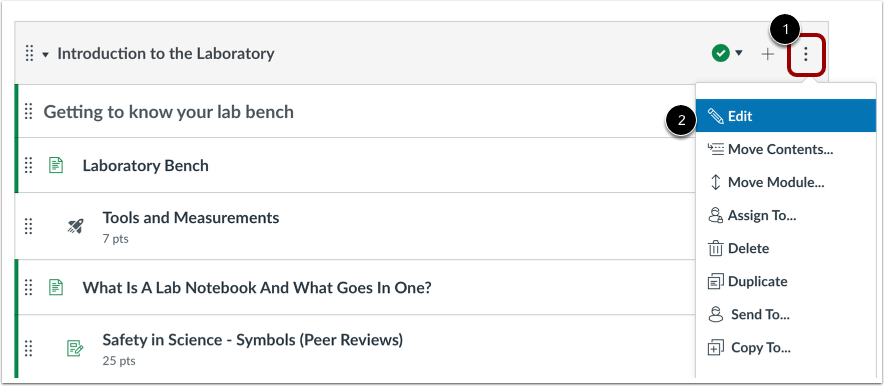
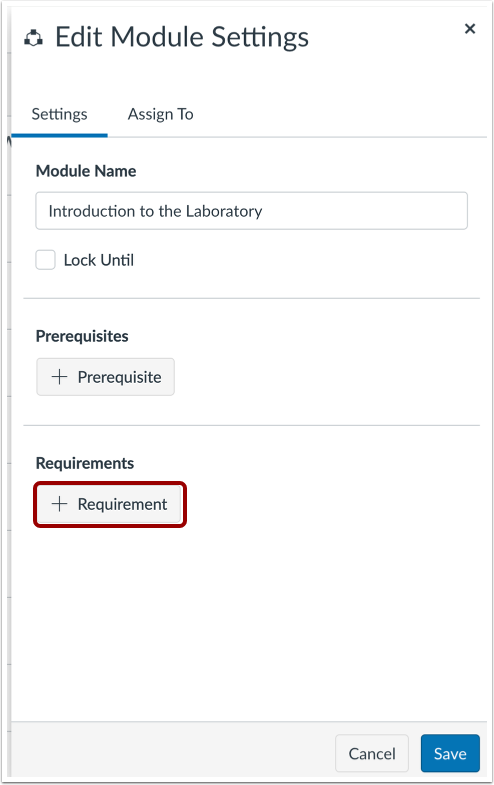
Fore more info, check out How do I add requirements to a module?
Where are the “show” and “hide” settings?
Show and Hide is identified in Canvas as Publish (show) and Unpublish (hide).
To check the visibility of course course items on the Modules page look for the crossed circle and the green check mark to the right of items and modules.
If an item has a green check mark it is currently Published. When you click the green check mark on an item it will be changed to be Unpublished and hidden from students. If something has the grey crossed circle and you click it, it will be changed to a green check mark and it will then be published to students.

Module and Course Item Visibility
If a published course item is in an unpublished module students will still not be able to access the course item in the module. You must have the module itself published for students to access the items inside, regardless of the visibility of the individual items.
To set your course visibility in Canvas you will access the Course Settings at the bottom left-hand side in the course navigation. Change the course status at the top right.

📢 Announcements & Communication
Where is the “News and Announcements” forum?
The Moodle News and Announcements is just called Announcements in Canvas. By default Announcements will appear in the left-hand course navigation menu. It will send emails out to students automatically when a post is made.
Students are able to customize and stop course announcement emails themselves. We cannot prevent or disable their ability to change their notification settings.
Announcement Visibility
Announcements will initially appear in left-hand course navigation with a crossed out hide meaning it is currently hidden. By default it will automatically Show to students after you make the first announcement.
Where is the question bank?
The question bank being utilized in Canvas is called “Item Banks” found in the left-hand course navigation. Item banks/categories must be shared manually to a specific course when created. You can access any Item bank from any course you are a teacher in.

Item Bank Navigation Visibility
Students will never be able to access or see "Item Bank" in their course navigation even if it is showing in your navigation. It must enabled in course navigation for you to easily access the Item Banks of your course.
How do I grade in Canvas?
Canvas uses a tool called SpeedGrader. You can access it by opening any assignment, quiz, or discussion and clicking "SpeedGrader" on the right-hand menu, or directly through the Gradebook. SpeedGrader allows you to view student submissions inline, add annotations directly to documents, fill out rubrics, and leave text, audio, or video feedback all on one screen without downloading any files.
📝 Assignments, Quizzes & Grading
Where is my “gradebook setup”? How do I weight my grades?
In Canvas, your gradebook structure is determined entirely by your Assignments page. To weight your grades, go to Assignments in the left navigation, click the three-dot (⋮) menu at the top right, and check the box for Weight Grades by Assignment Groups. From there, you can assign percentages to your different assignment groups (e.g., Quizzes: 20%, Exams: 40%).
Can I give different due dates to different students?
When editing any Assignment, Quiz, or Discussion, scroll down to the Assign box. By default, it says "Assign to: Everyone." To give a specific student or section a different due date (or an extension), click the + Add button below the box. Type the student's name in the new "Assign to" field and set their unique due date and availability windows.
Why can't my students see their grades or feedback yet? (Grade Post Policies)
In Moodle, you could "hide" an entire assignment column while grading it. Canvas handles this via Grade Post Policies. By default, Canvas automatically posts grades to students the second you type them into SpeedGrader. If you want to hide grades until you are finished grading everyone, go to your Gradebook, click the Settings (gear icon) at the top right, go to the Grade Post Policy tab, and set it to Manually Post Grades. When you are ready for students to see them, click the three-dot menu on that specific assignment column and select Post grades.
👥 Course Management: Groups & Cross-Listing
Can I combine (merge) my different course sections?
In Moodle, this was called a "metacourse." In Canvas, it is called Cross-listing. If you are teaching multiple sections of the same course and want to manage them from a single Canvas shell, you can request a cross-listed course using the ATC form.
ALERT 🚨
You must cross-list your courses before they are published and before students submit any work. If a student submits an assignment or quiz in a secondary section before it is cross-listed, those submissions and grades will not transfer over to your combined course; they will be left behind in the original, separate course shell.
How do I create groups?
In Canvas, groups are managed from the People tab in your course navigation. Instead of creating individual groups first, you create a Group Set (think of this as the category, like "Project 1 Groups").
Click the + Group Set button.
Choose whether to allow students to self-sign up, split students automatically, or create groups manually.
Once the set is created, Canvas creates a dedicated "Group Space" for each group, complete with their own mini-announcements, files, and discussion boards.
How do I see what my course looks like to a student?
Unlike Moodle’s "Switch role to..." drop-down menu, Canvas has a dedicated Student View button. Look for the glasses icon (or the "Student View" button) at the top right of almost any page (like the Home or Modules page). This creates a test student account, allowing you to actually submit assignments and take quizzes to test your course setup. Click Leave Student View at the bottom right to return to teacher mode.
Contact Academic Technology
ATC Support & Hours of Operation Weekday Support, Monday - Friday Phone (voi...
ATC Support & Hours of Operation
Weekday Support, Monday - Friday
- Phone (voicemail only): 541-463-3377 (8am-5pm)
- Email: atc@lanecc.edu (8am-5pm)
- Find our updated hours and support options on the ATC Website
The ATC is open to in-person assistance. Support is available through the above remote options and on campus at CEN 208