Lane Community College (LCC) students and staff can install a Microsoft Office 365 package for free using their LCC student/staff email. Microsoft Office is no longer available for purchase at the Titan Store.
Eligibility Requirements
- Chromebooks do not support the installation of MS Office.
- You must set up Google Workspace (Gmail) to get free Microsoft Office (students). If you have not set up Google Workspace, use these instructions to set it up. Expect a delay of 10-60 minutes for G-Suite to synchronize with the system that provisions Microsoft Office licenses.
- You must be registered for classes otherwise you will not be able to complete the free Microsoft Licensing process.
Microsoft Office 365's suite of tools includes Word, Excel, PowerPoint, and OneNote. Outlook, Access, and Publisher are also available if you click on the “Install Office” link on the upper right-hand side when you are on the installation page.
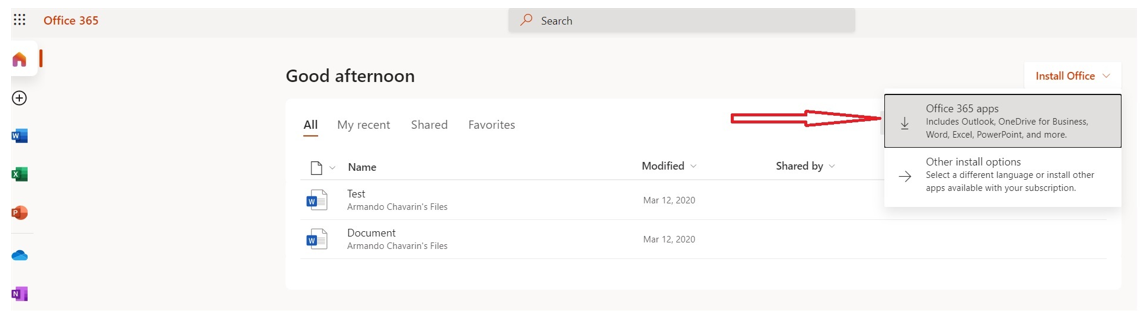
If you select the icons on the left-hand side, these are web-based apps and do not contain the full capabilities of the regular program. You are allowed 5 installs on personal desktop or laptop computers, tablets and smartphones. Supported operating systems include Windows, Mac OS, Android, and iOS (iPhones). To verify that your computer or mobile device will work with Office 365, make sure it meets the system requirements.
When does the license expire?
The license for the free student version of Office 365 is valid for 4 terms after the last term you took credit classes at Lane Community College.
Downloading and installing Microsoft Office requires setting up a student Microsoft Office account and then choosing and installing the software package that best fits your needs and the operating system on your computer or mobile device.
Not all Microsoft applications will be available for all operating systems.
Setting up a Microsoft Office Account
- Go to Office in Education and select “Get Started for Institutions”
- Enter your LCC student email address and password
- Press the blue button labeled Get Started below
- Press I'm a Student or Teacher
- There will be a wait while Microsoft checks that the email address belongs to an approved school
- The Microsoft account setup screen will appear.
Installing the Software Package
- The first screen after you set up the Microsoft account asks you to provide names for collaboration - you may press skip at the bottom
- The next screen describes uses of Office 365 - press the arrow to the right to scroll through
- You will now be at the install screen
- Some things to consider before pressing the install button at the install screen:
- The standard install includes Word, Excel, Powerpoint and OneNote
- The full install includes Access, Publisher and Outlook as well as Word, Excel, Powerpoint and OneNote and is available if you press the Other installs link
- Not all applications will be available for all computer or mobile device operating systems. For example, MS Access is not available on Mac Os.
- Decide which set of applications works best for your needs and operating system, then press the appropriate installer. The installer will download and install your software.
To learn more about using Microsoft Office 365, you can browse the Microsoft Office Tutorials page.
You will need to be able to go into your account to install on other devices. Also if something were to happen to your personal computer that required a complete reload of the operating system, you would be able to reinstall Office from this account. Look around in the account. There are some interesting extras that you might find useful.
The login page for your Microsoft account is at https://login.microsoftonline.com
Your login information will be the same that you use for your LCC student email address.
Contact Student Help Desk
The Student Support Desk (SHeD) is temporarily closed to in-person assistance. St...
Student Help Desk Support (SHeD)
The student help desk is located on main campus in the Library (center building).
- Self-help resources for students
- Email: shed@lanecc.edu
- Phone: (541) 463-3333 (please leave a voice message